



Content reviewed: 5 November 2026
Your organisation has Microsoft 365 Business Premium, yet one person budgets five print jobs per user and another budgets a hundred. A colleague compares that allowance with the number of printed pages. The budget cannot be reliable: it mixes different licences and different units.
Universal Print provides shared monthly capacity for the organisation. A user's entitlement to print, a licence's contribution to capacity and a job that actually counts are three separate things. You need to understand all three before purchasing. This guide covers an ordinary commercial tenant; education and government offers have their own conditions.
Which licences add 100 jobs and which add five
Microsoft's current licensing overview distinguishes the following contributions. They join a tenant-wide pool rather than becoming a non-transferable allowance for an individual employee.
| Commercial licence | Monthly contribution | Inventory check |
|---|---|---|
| Microsoft 365 E3 or E5 | 100 jobs | Record the exact product, not just the E3 abbreviation |
| Microsoft 365 Business Premium | 100 jobs | Do not confuse it with Business Standard |
| Microsoft 365 F3 | 5 jobs | Do not apply the E3 multiplier |
| Windows Enterprise E3 or E5 | 5 jobs | Distinguish the Windows licence from the Microsoft 365 suite |
| Universal Print standalone | 5 jobs | Separate the user licence from a capacity add-on |
Office 365 E3 is not the Microsoft 365 E3 entry in this table. Record the full SKU in your inventory. An assigned eligible licence gives the user access to the service; Microsoft derives the pool's volume from purchased licences and add-ons.
In practice, maintain two lists: how much capacity the organisation owns and which people are entitled to use the service. Compare completed jobs with the first. For an access error, investigate the second and the administrator's permissions. Extra capacity alone does not explain why a particular account cannot see a printer.
What counts as one print job
A single submitted document can contain many pages and copies. It still counts as one job for Universal Print capacity. Colour and duplex settings do not change that unit. The job counts when the service considers it completed: successfully delivered to a printer or acquired by a downstream service. Print-job counting rules therefore cannot be substituted with a paper-counter reading.
Consider our own simple example. An accountant prints three copies of one twenty-page document in a single submission. Another user submits twenty one-page confirmations separately. The second process consumes more jobs even though it may use less paper. A budget based on the total number of sheets would reverse their impact.
This suggests a useful pilot measure: count separate submissions in a typical business process. For invoices, labels or short confirmations, that may matter more than document length. However, do not combine documents merely to save capacity if doing so risks mixing up recipients or makes secure release harder to manage.
Why an uncollected document can still consume capacity
What matters is where the job is waiting. With native Universal Print QR release, an unreleased job that expires does not count towards the volume. But if the service has already handed it to a printer or external system and the person subsequently fails to release it with a badge, Universal Print may already consider it completed. Test the actual integration in your pilot; the label 'secure release' alone does not explain its behaviour. The QR release documentation also describes interaction with badge and PIN release.
A worked capacity model for a mixed tenant
The following figures are a hypothetical planning example, not Axeti customer data. The organisation has 80 Business Premium licences, 60 F3 licences and ten standalone Universal Print licences. To keep the model simple, the groups are separate and the inventory contains no other eligible products.
| Model component | Calculation | Result |
|---|---|---|
| Business Premium | 80 × 100 | 8,000 jobs |
| F3 | 60 × 5 | 300 jobs |
| Universal Print standalone | 10 × 5 | 50 jobs |
| Base pool | 8,000 + 300 + 50 | 8,350 jobs per month |
| Expected peak month | Assumed input for this model | 9,200 jobs |
| Planning target with 15% headroom | 9,200 × 1.15 | 10,580 jobs |
| Shortfall against the base pool | 10,580 − 8,350 | 2,230 jobs |
The 15% headroom is a choice in our model, not a Microsoft requirement. In a seasonal business, replace it with a real scenario, such as opening another branch or a recurring monthly document run. The average of three quiet months will not reveal that peak.
Microsoft offers capacity add-ons in blocks of 500 and 10,000 jobs. In this model, five 500-job packs would add 2,500 jobs, bringing the pool to 10,850. That leaves 270 jobs above the planning target. This is a capacity calculation, not a pricing recommendation: compare actual offers by currency, commitment and purchasing channel. Check add-on sizes and commercial terms when ordering.

Measure consistently to reconcile reports
Open Usage and reports in Universal Print. The monthly consumption summary covers a calendar month; downloadable user and printer data cover the last 30 days. A job belongs to the month in which it completes. Unused volume does not roll over. Microsoft's reporting guide explains these time windows and the distinction between completed and pending jobs.
We recommend the following reporting check:
- Record the reading date, reporting period and total capacity from the monthly overview.
- Compare completed jobs within the same calendar period; do not attach a rolling 30-day export without aligning it.
- For unusual consumption, identify the printer, account and business process involved.
- Archive regular exports if you need to compare a longer history.
- Recalculate next month's capacity when either the licence mix or operations change.
Impressions and Sheets are estimates of document pages and physical sheets based on printer-reported information. Microsoft advises against using them for financial reporting. Use completed jobs to check licensed capacity; use the agreed device metering records for contractual billing by a print-service supplier. These reporting metrics serve different purposes.
Separate overages from access errors
According to Microsoft, exceeding the included monthly volume does not itself stop printing. The administrator receives an alert, and the organisation must add enough licences or capacity to cover its ongoing use. This does not mean unlimited free printing. The current overage rule also matters during troubleshooting: an ordinary printer error cannot automatically be attributed to an exhausted pool.
| Symptom | Check first | Avoid |
|---|---|---|
| An account cannot administer printing | The account's licence and required role | Buying capacity without checking permissions |
| A QR link leads to a sign-in block | Sign-in logs and applied access policies | Disabling security across the board |
| Jobs stall or fail during a burst of printing | Job state, printer, connector and operational limits | Assuming every issue means the monthly pool is exhausted |
| The summary does not match an export | The same period and completion date | Comparing a calendar month with the last 30 days |
The connector installation guide requires a Universal Print licence and either the Printer Administrator or Global Administrator role. For routine administration, use the appropriate least-privileged role. Connector prerequisites are a separate check; they do not replace the capacity inventory.
The service also has operational limits, including a 1 GB maximum job size. Printing from service principals and managed identities is unsupported. Assess automated business printing processes before rollout: enough monthly capacity does not automatically make a scenario supported.
What changed with the new QR portal
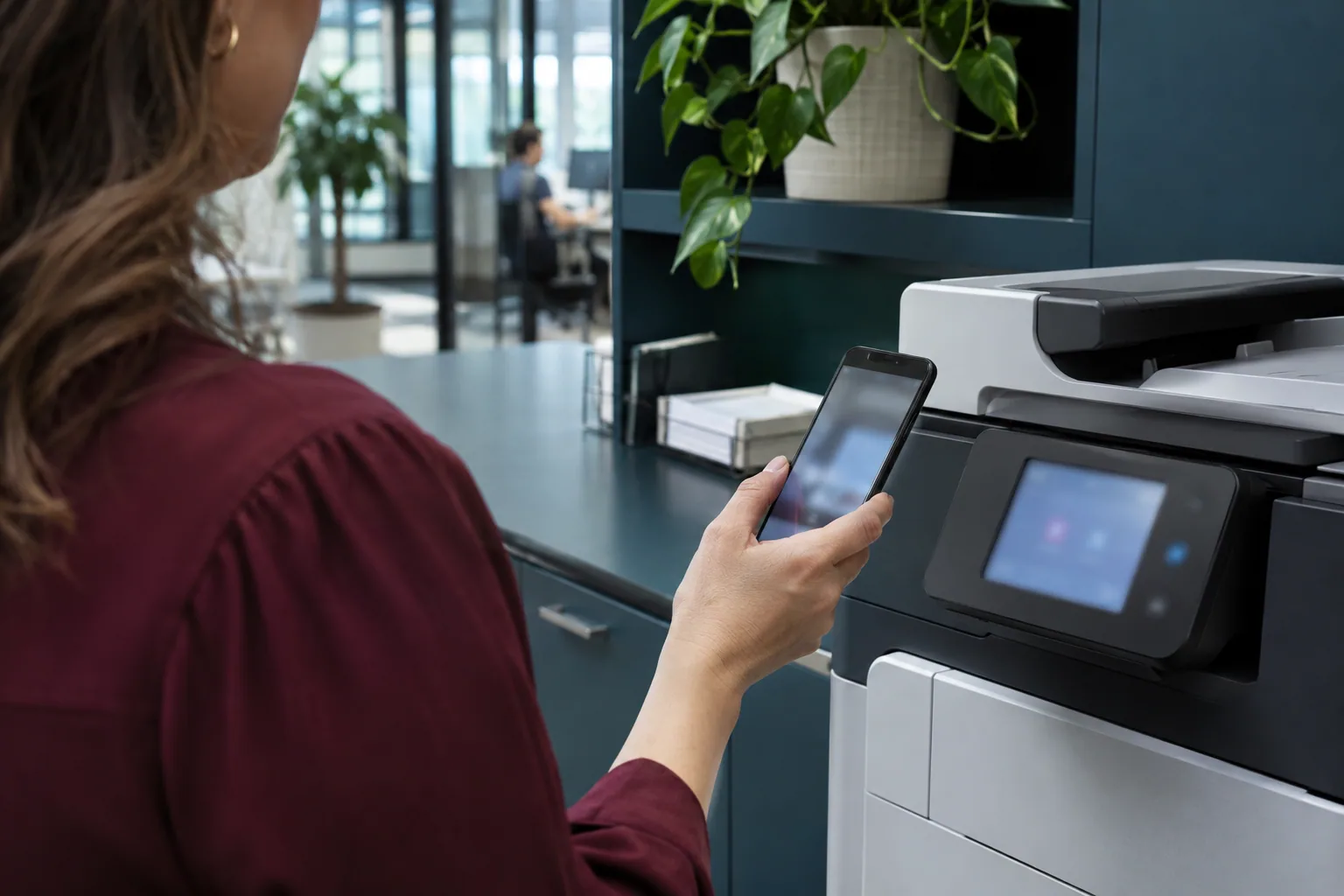
On 18 August 2026, browser-based QR release replaced the experience in the Microsoft 365 Copilot app. Sign-in remains subject to organisational policies. Test not just the phone's camera but also the work profile, allowed browser and managed-device requirements. The portal rollout guidance recommends investigating Conditional Access in the sign-in logs when access is blocked.
Include a real work phone and an uncollected job in your acceptance test. Record where the job waited, how its state changed and whether it appeared among completed jobs. That record will later help distinguish a licensing question from a change in the release integration.
To prepare a capacity assessment with Axeti, provide full licence names, a monthly report and a description of how printers release jobs. Those inputs support an auditable capacity plan. If you are also considering F3, our guide to Microsoft 365 F3 eligibility addresses a different question: whether that licence is appropriate for the user at all.
Frequently asked questions
Is the monthly allowance restricted to each individual user?
No. Eligible licences contribute to a shared pool. Plan capacity at tenant level and separately check each printing account's entitlement.
Should I track pages or jobs?
Track jobs for Universal Print capacity. Pages and sheets matter for paper, consumables and printer operations; do not convert them into jobs using a fixed ratio.
Does an overage mean I should immediately investigate a service outage?
No. First separate a capacity warning from an actual job error. Ongoing use must be covered by the appropriate licensing, but the documentation does not describe the overage itself as an automatic printing stop.
Does an uncollected print always count as zero jobs?
No. It depends on whether a printer or downstream service has already acquired the job. The documentation excludes expired, unreleased native QR jobs; another release mechanism may have a different completion point.
Do I need the Microsoft 365 Copilot app for QR release?
The current process uses a browser-based portal. The device and browser must meet organisational access policies. Test the usual combinations of work profiles and phones during the pilot.